Undo a Google Calendar import: delete imported events
Google Calendar has no undo button for imports. If you imported into a calendar you created for that purpose, simply delete that calendar – along with all imported events. That doesn’t work with your primary calendar: it can’t be deleted, you can only delete all of its events at once.
As of 7 October 2026 · Source: Google Calendar Help: Delete or unsubscribe from a calendar
Step by step: delete the imported calendar
- Open Settings
Open Google Calendar on a computer, click the gear icon at the top right, then “Settings”. - Select the calendar
Find the calendar you imported into on the left and click its name. - Delete the calendar
In the section for deleting the calendar, click “Delete”. Google points out that all events in this calendar will be deleted – and events with invited guests are also removed from the guests’ calendars. - Confirm “Delete permanently”
Google asks whether you really want to delete all events in this calendar and warns that this can’t be undone. Confirm with “Delete permanently”. - Check the result
A “Deleting…” notice appears at the bottom; afterwards the calendar is gone from the list. If it’s still there, reload the page and delete it again.
Field test: deleting doesn’t always work the first time
In our test in October 2026 we deleted a calendar into which we had imported a part with 999 events. It didn’t always work on the first try. When it works, it looks like this (German interface):
- After “Delete”, Google asks for confirmation and warns that deleting all events in the calendar can’t be undone.
- After “Delete permanently”, a “Deleting…” notice appears at the bottom.
- Then the calendar is gone from the list on the left.
If the calendar is still there or events are still visible, reload the page and delete it again.
If Google says the calendar couldn’t be deleted
Google doesn’t explain this message. The most likely cause is a timeout: deleting a whole calendar takes too long and Google gives up. In the Google Help Community, a user describes exactly this for a calendar with 26,999 events – only after most events had been removed could the calendar be deleted. That is a user report, not a statement by Google.
- Wait a few minutes, reload the page and check whether the calendar is already gone.
- Choose “Delete” again – in our test it didn’t work every time, another try can help.
- Check whether it is your primary calendar: that one can’t be deleted, only all of its events.
- Prevent it: spread large exports over several smaller calendars (split, import in parts) and first test with one part whether the calendar can be deleted again.
User report: Google Calendar Help Community: “I can’t delete a calendar that has 26,999 events”
If the events ended up in your primary calendar
You can’t delete your primary calendar. Google only offers to delete all events of the primary calendar at once – including those that didn’t come from the import. Otherwise you have to delete imported events by hand.
That’s exactly why the tool recommends creating a new, empty calendar before every download.
How to set up your next import
- Create a new calendar in Google Calendar, e.g. “Import 2026”.
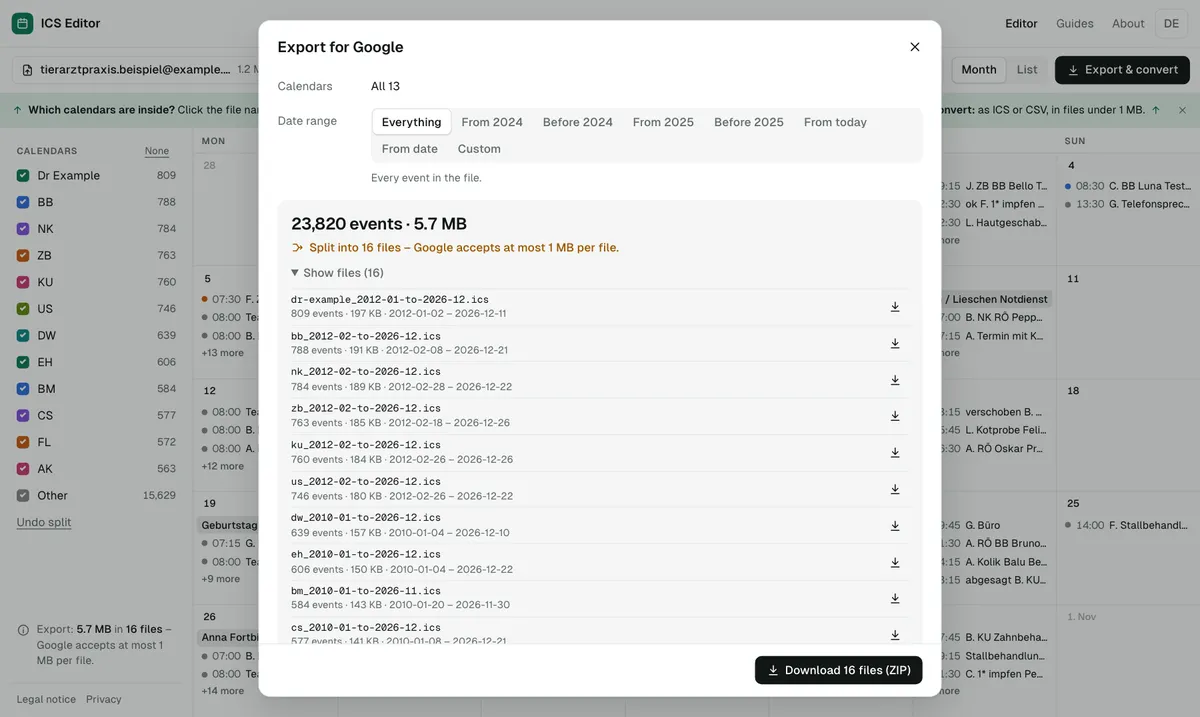
- Check the file in the tool and, if necessary, split it into parts under 1 MB.
- Import every part into the new calendar – click “Import” once.
- Check the result. If something is wrong, delete the calendar and start again.
If you want to import the same events a second time, you can assign new event IDs when exporting, under “More options”.
Frequently asked questions
Can I delete only the imported events in my primary calendar?
Not in one go. For the primary calendar, Google only offers “delete all events”. That’s why it’s better to import into a separate, new calendar.
Are shared events lost when I delete a calendar?
Yes. According to Google, if you delete a calendar you share with others, it is removed for everyone.
Why does Google say the calendar couldn’t be deleted?
Google doesn’t explain the message. Most likely, deleting a calendar with many events times out. Wait, reload the page, delete again – and in future, prefer several smaller calendars.
Why does Google show “Processed zero events” after importing?
According to Google, often because Import was clicked twice. The events are then usually already there from the first click.
Sources
- Google Calendar Help: Delete or unsubscribe from a calendar
- Google Calendar Help: Create a new calendar
- Google Calendar Help: Fix problems importing
All information as of 7 October 2026.